How to hide options your editor doesn’t need
Look at the two screenshots of the core group block’s style tab below.
By default, you can change color, background, typography, margin, padding, block spacing, min-height, and border settings.
Enable the MRW Simplified Editor, and the options are reduced to just color and typography.


How to show a curated selection of blocks
WordPress core, along with my theme, offers me a total of 106 blocks, of which I use 22. By disabling unused blocks, the block insertion workflow gets a lot simpler. Furthermore, I avoid situations where an editor or post author uses blocks that are not styled properly or that I cannot support.
For instance, I’m disabling the verse, footnotes, and classic block, which may cause all sorts of design and accessibility issues if not implemented carefully.
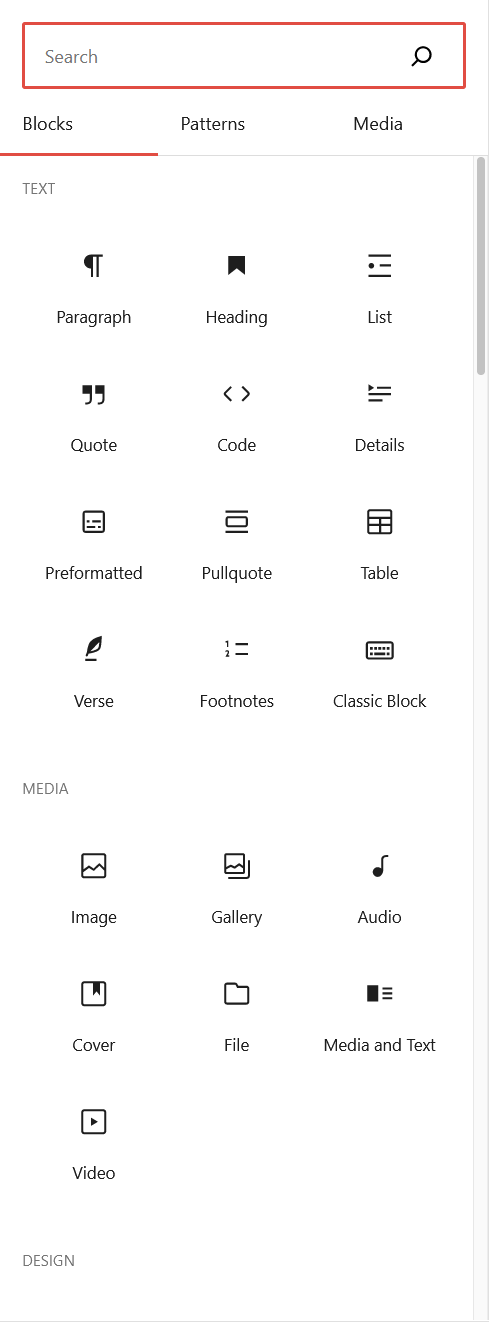
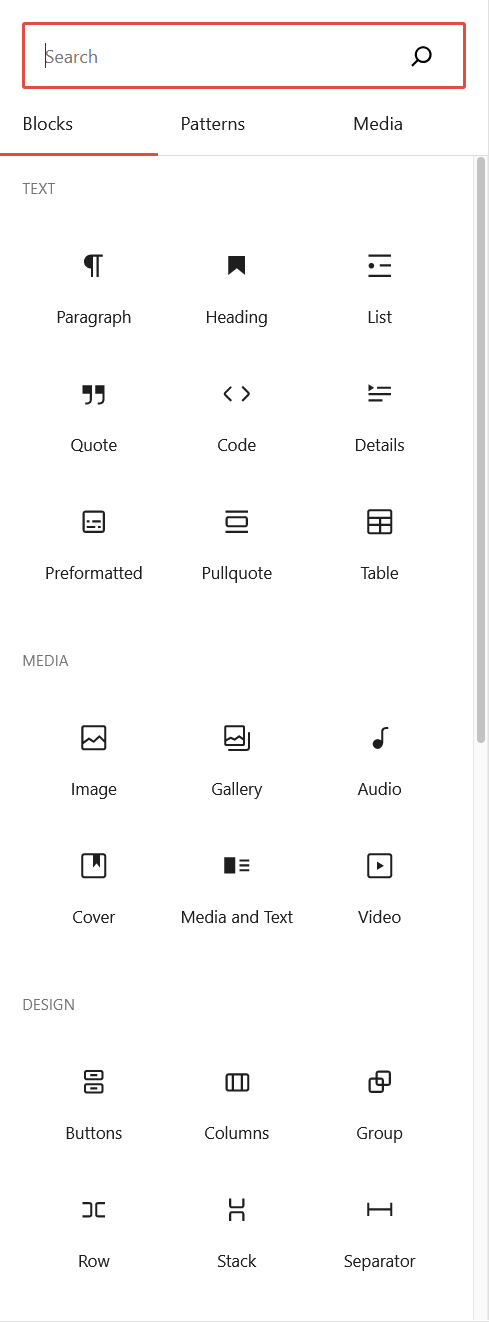
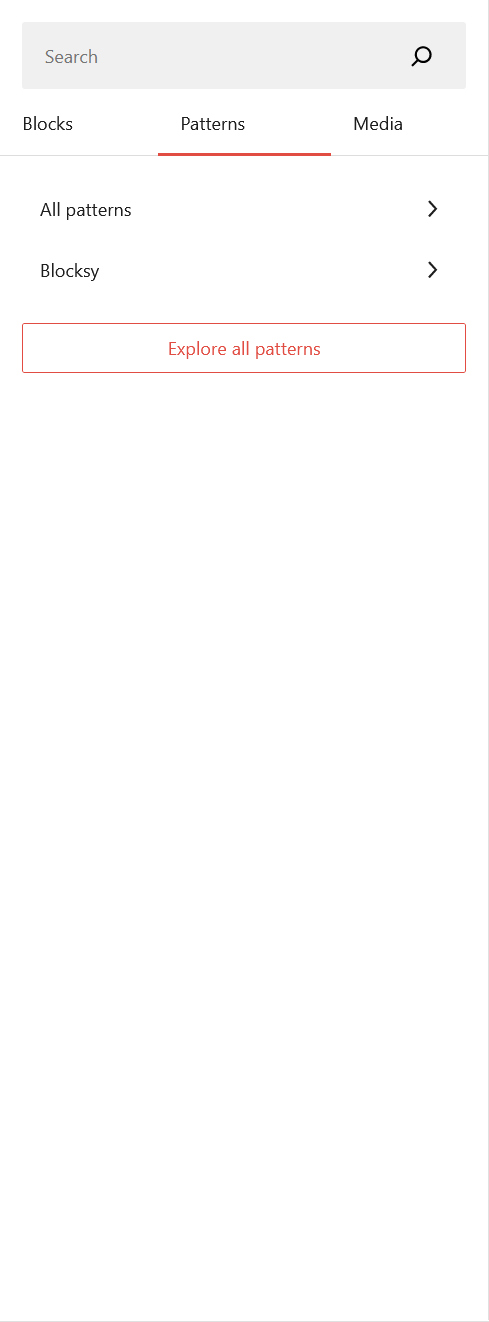
No external patterns that might hurt privacy.
You probably know where this is going.
WordPress, by default, provides a diverse range of patterns. You can use these for inspiration, but they might not work for your design. Many of them rely on external assets like pictures, potentially causing performance and privacy issues.
Patterns on WordPress are a great feature that I use on many sites, but you should definitely create them within your design guide, using your own assets.

But wait, there is more! (that needs to go)
You probably don’t use multiple H1’s on your page, the default gradients, or the duotones. Nor is it likely that you want inline images floating around in strange places on different devices.
So these options are taken care of by the MRW Simplified Editor by taking them away. The complete list is in the plugin description on WordPress.org.
Lastly, the “Upload” and “Insert from URL” image options are removed from the image block, to encourage use of Media Library, where you should consider site wide alt-texts and captions anyway.
Customize the plugin to meet your needs.
MRW Simplified Editor is an opinionated plugin written by Mark Root-Wiley for his specific needs. But every site is different, so Mark has been so thoughtful to provide a set of filters that we can use to customize the editor experience for our own projects.
I use the inline code or the kbd markup in some blog posts, so these options should stay enabled. I also rely on the audio and video blocks, so they must be available as well.
On the other hand, I don’t want clients to embed content from Issuu or TikTok. If they have needs like that, we will discuss a solution that ensures at least some level of privacy and accessibility.
MRW Simplified Editor customization filters
Here’s the code snippet I use to customize the MRW Simplified Editor plugin here on oldrup.dk
<?php

// MRW Simplified Editor for WP 6.7; Unhide specific inline options in the block editor

add_filter("mrw_hidden_block_editor_settings", "oldrup_unhide_inline");
function oldrup_unhide_inline($features)
{
    // Unhide the kbd and code html elements, I use those :)
    return array_diff($features, ["keyboard", "inline-code"]);
}

// MRW Simplified Editor; Unhide, and hide, selected blocks from the block-editor

add_filter("mrw_hidden_blocks", "oldrup_unhide_and_hide_blocks", 10, 2);
function oldrup_unhide_and_hide_blocks($blocks, $context)
{
    // Unhide the following blocks (which are hidden by default)
    $blocks = array_diff($blocks, [
        "core/audio",
        "core/code",
        "core/details",
        "core/preformatted",
        "core/table",
        "core/video",
    ]);

    // In addition to the defaults, hide the following core and blocksy theme blocks
    $additional_blocks_to_hide = [
        "core/comment-author-name",
        "core/comment-content",
        "core/comment-date",
        "core/comment-edit-link",
        "core/comment-reply-link",
        "core/comments-title",
        "core/button",
        "core/buttons",
        "core/file",
        "core/html",
        "core/latest-posts",
        "core/template-part",
        "core/social-links",
        "blocksy/about-me",
        "blocksy/breadcrumbs",
        "blocksy/contact-info",
        "blocksy/content-block",
        "blocksy/dynamic-data",
        "blocksy/post-template",
        "blocksy/query",
        "blocksy/search",
        "blocksy/share-box",
        "blocksy/socials",
        "blocksy/tax-query",
        "blocksy/tax-template",
        "blocksy/widgets-wrapper",
    ];

    return array_merge($blocks, $additional_blocks_to_hide);
}

// MRW Simplified Editor; Hide specific embeds in the block editor
// Note: Don't hide core/embed above, if you want to use embeds

add_filter("mrw_hidden_embeds", "oldrup_hide_embeds", 10, 2);
function oldrup_hide_embeds($hidden_embeds)
{
    // Unhide the following embeds (which are hidden by default)
    $hidden_embeds = array_diff($hidden_embeds, ["wordpress-tv", "videopress"]);

    // In addition to the defaults, hide the following unused embeds
    $new_embeds_to_hide = [
        "bluesky",
        "flickr",
        "imgur",
        "issuu",
        "kickstarter",
        "pinterest",
        "reddit",
        "screencast",
        "scribd",
        "slideshare",
        "soundcloud",
        "speaker-deck",
        "ted",
        "tiktok",
        "tumblr",
        "twitter",
        "wordpress",
    ];
    return array_merge($hidden_embeds, $new_embeds_to_hide);
}

// Plugin: https://wordpress.org/plugins/mrw-web-design-simple-tinymce/
// Block list: https://www.wpexplorer.com/wordpress-core-blocks-list/
Patterns are not affected
If you wonder whether you can insert patterns that contain blocks that are unavailable in the block inserter, you absolutely can. That is the beauty of this combination. You can create, say, a table pattern with accessible placeholder content and styling, and an author can use that pattern even though the blank table block is hidden.
By constraining a content creator to well-tested and self-describing patterns, we help them focus on the content instead of typewriter mechanics.
Create different rules for different roles
Does your editor need access to a different set of blocks and options than your administrator or author? If so, you can create different sets of rules and apply them depending on the role of the logged-in user. You can do it with a few lines of code or by using the “conditions” feature in most code snippet plugins.

Compatibility and conclusion
I’m using the MRW Simplified Editor on a handful of sites, and so far, the experience, especially with well-crafted patterns, is absolutely great.
The sites run WordPress 6.7 and PHP 8.3.
The process of creating customized snippets may require some time; however, it is highly adaptable. By utilizing the code provided above as a starting point, a more user-friendly and simplified block editor experience can be created within minutes.
How can the block editor be more approachable to the average Joe? Please let me know in the comments below.
Bonus snippet: hide block descriptions
The following CSS snippet, has nothing to do with MRW Simplified Editor; however, I tend to use the two techniques in conjunction, as it improves my UX even further, by making room for advanced fields I regularly use.
See, I prefer a class-based styling approach, often creating patterns and using the BEM naming methodology where it makes sense. However, the class field is usually hidden down the post sidebar.
If you already know your building blocks
While the texts “Start with the basic building block of all narrative.” and, “Enter a word or two – without spaces – to make a unique web address just for this block, called an ‘anchor.’ Then, you’ll be able to link directly to this section of your page.” — might be helpful to some, I’m not convinced that the sidebar panel is the best place to educate experienced creators about basic HTML.
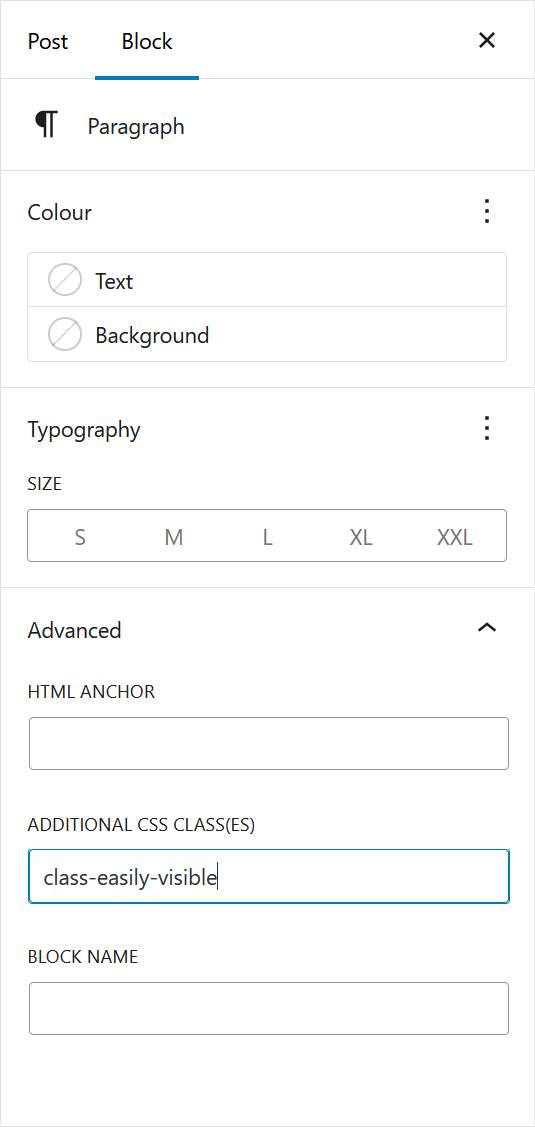
By hiding the help texts, and reducing the height of the input fields a little, the UI is — to me — a little less distracting, and the class field I use all the time, is visible without me having to scroll for it.
Easy access to the class field
Here are screenshots of the paragraph block settings, with the help text highlighted, and hidden, respectively.

The Block Editor Cleanup CSS snippet
Below is the CSS used. My code snippets plugin loads it in the admin footer. There is no point in loading it on the front end. Furthermore, I load it for administrators only, as the block descriptions might actually be helpful to editors. Tested with WP 6.4 and WP 6.5 RC2.
/** Block Editor Cleanup 2024-05-15
    Hides help text under blocks like paragraphs and
    under the html ancor element field for a simpler ui
**/

/* Hide block description like "Start with the basic building block" */
.edit-post-sidebar .block-editor-block-card__description {
    display: none;
}

/* Hide inspector description like "Enter a word or two — without spaces"*/
.edit-post-sidebar .components-base-control__help {
    display: none;
}

/* Reduce heigt of the color selector */
.edit-post-sidebar
    .block-editor-tools-panel-color-gradient-settings__dropdown
    > button {
    padding-bottom: 6px;
    padding-top: 6px;
}

/* Reduce height of toggle groups, like Typography Size */
.edit-post-sidebar .components-toggle-group-control {
    min-height: 32px;
}

/* Reduce height of drop-downs, like Typography Font */
.edit-post-sidebar
    .components-input-control__container
    .components-select-control__input {
    height: 32px;
    min-height: 32px;
}

/* Reduce height of advanced fields, like CSS classes */
.edit-post-sidebar
    .block-editor-block-inspector__advanced
    .components-text-control__input.is-next-40px-default-size {
    height: 32px;
}